Capacitor Geolocation for Lovable Apps
Your Lovable app probably already asks for location. Somewhere in a component there’s a navigator.geolocation.getCurrentPosition() call that Lovable wrote, it works in the browser preview, and it even works when you wrap the app with Capacitor. Sort of. On iOS you get a system prompt, then sometimes a second one titled “localhost” that looks like a phishing attempt. On Android it works on your phone and times out on the tester’s. Capacitor geolocation is the fix for both, and it’s about an hour of work if you do it in the right order.
Install it, then do the native bits nobody mentions
npm install @capacitor/geolocation
npx cap sync
The current release is 8.2.3 (October 2, 2026), which is the one you want on Capacitor 8. If you’re still on 7, upgrade first, because the 8.x plugin changed how timeouts and update intervals work on Android.
The install is the easy part. The plugin does nothing until the native projects declare the permission.
iOS needs two keys in ios/App/App/Info.plist: NSLocationWhenInUseUsageDescription and NSLocationAlwaysAndWhenInUseUsageDescription. You need the second one even if you never track in the background, because the plugin is built on a library that can, and Apple checks for the key. The prompt for it never shows, so the Capacitor docs say you can reuse the same sentence.
Write that sentence properly. “We need your location” is the kind of purpose string that gets an app bounced under guideline 5.1.1. Say what the user gets: “Shows bakeries open near you” or “Fills in your delivery address so you don’t have to type it.”
Android needs these in android/app/src/main/AndroidManifest.xml:
<uses-permission android:name="android.permission.ACCESS_COARSE_LOCATION" />
<uses-permission android:name="android.permission.ACCESS_FINE_LOCATION" />
<uses-feature android:name="android.hardware.location.gps" />
The uses-feature line is optional. Leave it in only if the app is useless without GPS, because it hides your listing from devices that don’t have it. Forget the permissions entirely and you get a pretty clear error at least: OS-PLUG-GLOC-0018, “Location permissions are not declared in manifest.”
Replace the browser call
Find every navigator.geolocation in src/. Lovable tends to put it in a hook or straight in a map component. Swap it for the plugin and ask for permission yourself, at a moment that makes sense, instead of on page load:
import { Geolocation } from '@capacitor/geolocation';

export async function whereAmI() {
  let perm = await Geolocation.checkPermissions();
  if (perm.location === 'prompt' || perm.location === 'prompt-with-rationale') {
    perm = await Geolocation.requestPermissions();
  }
  if (perm.location !== 'granted' && perm.coarseLocation !== 'granted') return null;

  const pos = await Geolocation.getCurrentPosition({
    enableHighAccuracy: true,
    timeout: 20000,
    maximumAge: 60000,
  });
  return { lat: pos.coords.latitude, lng: pos.coords.longitude, accuracy: pos.coords.accuracy };
}
Keep the web path working too. requestPermissions() isn’t available on web, so if the same codebase still ships as a website, check Capacitor.isNativePlatform() and fall back to the browser API there. Otherwise the Lovable preview breaks and you’ll be confused for ten minutes.
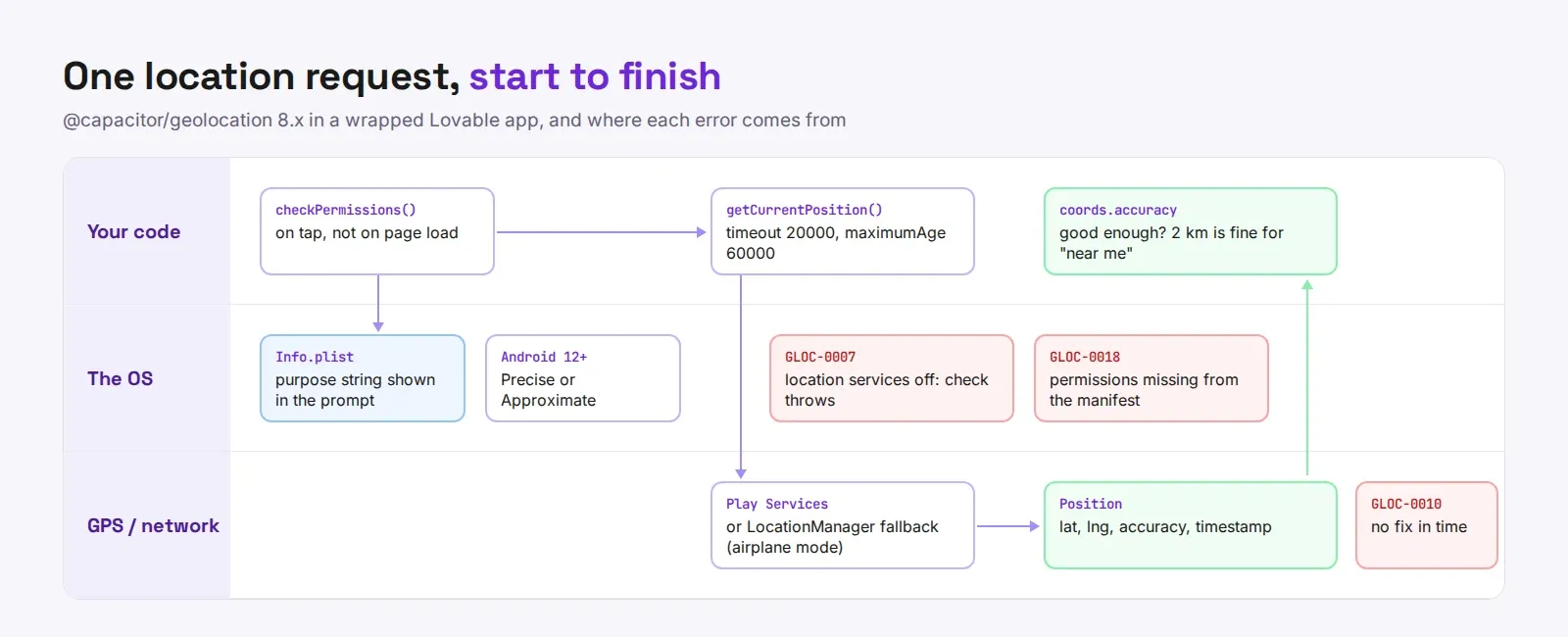
The timeout that “works on my phone”
The default timeout is 10,000 ms. That’s fine outside with a phone that just used Maps. It is not fine indoors, on a cheap Android that hasn’t had a fix all day.
We had this on a field-service app a client built in Lovable. Technicians open a job, the app stamps their location on arrival. Worked for everyone in the office. Then two technicians in a basement plant room kept getting “Could not obtain location in time. Try with a higher timeout.” (OS-PLUG-GLOC-0010), the app showed a blank error toast, and they stopped using the arrive button. The fix was three lines: a 20 second timeout, maximumAge: 60000 so a fix from a minute ago counts, and a “use last known location?” fallback instead of the toast. Nobody needs metre accuracy to prove they’re in the building.
On Android the plugin also falls back to the old LocationManager when Google Play Services’ checks fail, for example on a device without Play Services or in airplane mode. That’s enableLocationFallback, on by default in 8.x. Leave it on. In airplane mode it only uses raw GPS, which is slow, which is one more reason for the longer timeout.
Approximate vs precise
Since Android 12 the user can pick “Approximate” in the permission dialog, and iOS has had the same “Precise: Off” toggle for years. When they do, enableHighAccuracy: true is simply ignored on Android, and you get something accurate to a couple of kilometres.
Don’t fight it. Check coords.accuracy and decide whether the result is good enough for what you’re doing. A “stores near me” list works fine at 2 km. Turn-by-turn tracking doesn’t, so explain why and link to settings, and only ask once. If approximate is all you ever need, declare only ACCESS_COARSE_LOCATION and set enableHighAccuracy: false; you’ll get fewer scary prompts.
Watching position without killing the battery
watchPosition() gives you a callback on every update and returns a string ID you pass to clearWatch(). Two things go wrong here.
The first is never clearing it. A Lovable component that starts a watch in a useEffect without a cleanup keeps the GPS running after the user leaves the screen. The Capacitor docs themselves warn it “can consume a large amount of energy”. Return () => Geolocation.clearWatch({ id }) from the effect. Also, watchPosition is async, so store the promise and clear it once it resolves, or a fast unmount leaks the watch anyway.
The second is updates that are too frequent. On Android you can set interval (since 8.0) and minimumUpdateInterval (default 5,000 ms). If you don’t set interval, it falls back to your timeout value, which surprises people who raised the timeout to 20 seconds and then wonder why the dot on the map updates so slowly. These two options do nothing on iOS or web.
Background tracking is a separate problem. This plugin doesn’t do it, and going there means a different plugin, the “Always” permission, and a much harder App Store and Play review. If your app’s pitch depends on tracking people with the screen off, talk to someone before you build it.
Before you submit
Run through this on a real device, not the simulator:
- Fresh install, deny location. The app should still work, just without the location feature.
- Allow once, approximate only. Check what the UI does with a 2 km accuracy circle.
- Turn location services off in system settings.
checkPermissions()throws in that case (OS-PLUG-GLOC-0007on both platforms), so catch it. - Airplane mode, indoors. Wait for the timeout and see what the user sees.
If the location feature is the reason your app exists, that’s worth getting right before review rather than after a rejection email. That’s a big part of what we do when we turn a Lovable web app into a native app, and we’re happy to look at yours if you get in touch.