Capacitor Filesystem for Lovable Apps
“The export button works, it says saved, but the file isn’t anywhere.” That’s the support ticket. The founder had a Lovable invoicing app wrapped with Capacitor, tapped “Download PDF” on an iPhone, saw a green toast, and then searched the Files app for ten minutes. The file was there. It was sitting in a folder iOS doesn’t show to users unless you tell it to, and on Android it had landed in a place that changed meaning twice since Android 10.
Capacitor Filesystem is the plugin that reads and writes files on the phone. In the browser your Lovable app never needed it, because “download” meant the browser’s download bar. Inside a native shell there’s no download bar. You write the file yourself, and you pick where.
This post uses @capacitor/filesystem 8.1.5, the current version on npm as of October 18, 2026, and Capacitor’s own docs for it.
Install and the one-line write
npm install @capacitor/filesystem
npx cap sync
import { Filesystem, Directory, Encoding } from '@capacitor/filesystem';
await Filesystem.writeFile({
path: 'exports/invoice-1042.csv',
data: csvText,
directory: Directory.Documents,
encoding: Encoding.UTF8,
recursive: true, // creates exports/ if it isn't there
});Leave out recursive: true and the first write into a folder that doesn’t exist yet fails with OS-PLUG-FILE-0011, missing parent directory. Every app hits that once.
Leave out encoding and the plugin assumes your data is base64. That matters more than it sounds, and we’ll come back to it.
The Directory you pick decides who can see the file
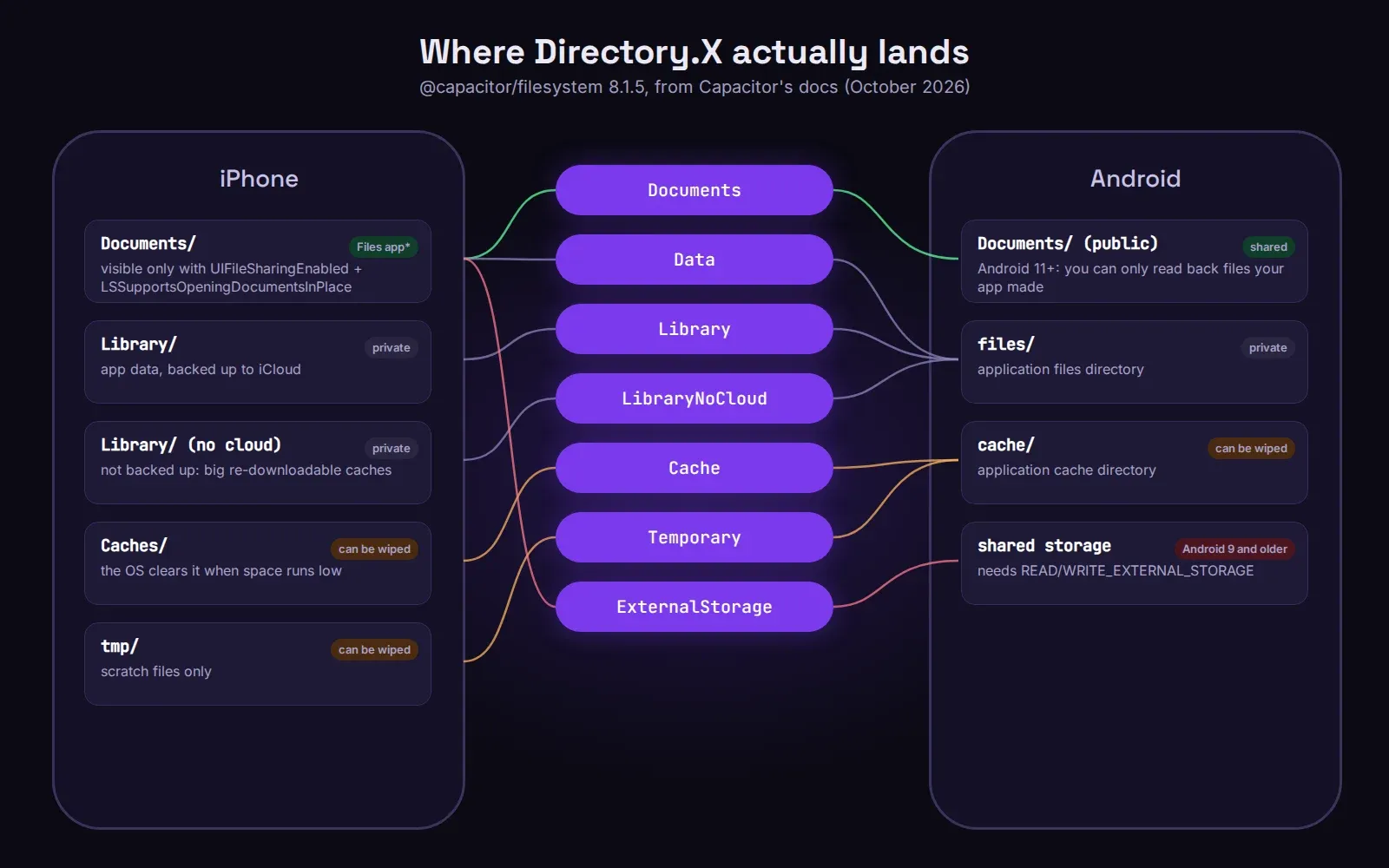
The Directory enum looks like a list of synonyms. It isn’t. The same value points at different places on each platform:
- Documents is your app’s Documents folder on iOS and the public Documents folder on Android. On Android 11 and newer you can only read back files your own app created there.
- Library is private app storage on both platforms. Users never see it. Good for things the app needs and the user doesn’t: a cached JSON of today’s bookings, a draft that survives a restart.
- Data is private on Android, but on iOS Capacitor maps it to the same Documents folder. Turn on file sharing (below) and your “private” data files show up in the Files app. Use Library for anything users shouldn’t poke at.
- Cache and Temporary can be wiped by the OS when space runs low. Never put the only copy of anything there.
- LibraryNoCloud is iOS Library storage that isn’t backed up to iCloud. Use it for big caches you can re-download, so you don’t eat the user’s iCloud space.
- External and ExternalStorage are the old Android shared storage. ExternalStorage only works on Android 9 or older. If your Lovable app’s code has it, that code was copied from a 2019 Stack Overflow answer.
So for “the user should be able to find this PDF”, Documents is right, but on iOS it’s still invisible until you add two keys to Info.plist:
<key>UIFileSharingEnabled</key>
<true/>
<key>LSSupportsOpeningDocumentsInPlace</key>
<true/>
With both set, your app gets its own folder in the Files app under “On My iPhone”. Without them, the file exists and nobody can open it. That was the invoicing app’s whole bug: two plist keys.
Honestly, for most exports I’d skip all of this and hand the file to the share sheet instead. Write it to Cache, get its URI with Filesystem.getUri(), pass that to @capacitor/share, and let the user decide: Files, email, WhatsApp, AirDrop. Users understand the share sheet. They don’t understand app sandboxes.
Base64 will eat your memory
The plugin passes everything between the web view and native code as strings. For binary files, a photo, a PDF, a zip, that string is base64, which is about a third bigger than the file. A 30 MB video becomes a 40 MB string in JavaScript, then gets copied across the bridge. On a mid-range Android phone that’s how you get the app killed with no error at all.
Capacitor’s docs say large files may need android:largeHeap="true" on the <application> tag. I’d treat that as a bandage. The real fixes:
- Don’t read big files into JavaScript at all. To show a saved image, get its URI and run it through
Capacitor.convertFileSrc(), then put that in an<img>. The web view loads it straight from disk. - Don’t download through
fetchand thenwriteFile.Filesystem.downloadFile()is deprecated since 7.1.0; the replacement is@capacitor/file-transfer(2.0.6 on npm today), which streams the download to disk and reports progress. - For uploads, the same plugin streams from a file path instead of you building a base64 body.
Text files are fine. A CSV of a few thousand rows with Encoding.UTF8 costs nothing.
The App Store part nobody mentions
The plugin reads file timestamps (that’s what stat() returns), and Apple counts file timestamps as a “required reason API”. Your app needs a PrivacyInfo.xcprivacy file that declares NSPrivacyAccessedAPICategoryFileTimestamp with reason C617.1. Skip it and App Store Connect emails you about a missing API declaration after upload. It’s a five-minute fix in Xcode, but it’s five minutes you’ll spend on submission day otherwise, usually at night.
On Android, if you only use Data, Cache or Library you need no permissions. Writing to Documents or ExternalStorage on Android 10 and older needs READ_EXTERNAL_STORAGE and WRITE_EXTERNAL_STORAGE in the manifest. Asking for those on a new app looks odd to Google Play’s review, so ask yourself whether the share sheet would do the job.
Errors worth handling
Since 7.1.0 the native side returns real error codes. The three you’ll actually see: OS-PLUG-FILE-0008 (file doesn’t exist, usually a cache that got wiped), OS-PLUG-FILE-0011 (missing parent directory, add recursive: true) and OS-PLUG-FILE-0012 (deleting a folder that isn’t empty without recursive). Catch 0008 and re-download instead of showing the user a stack trace.
If your Lovable app has a download button and you’re wrapping it for the stores, that button is one of the first things that behaves differently on a phone. See how we take Lovable apps to the App Store and Google Play, or send us what it does and we’ll tell you what changes.