Google Sign-In in a Capacitor Lovable App
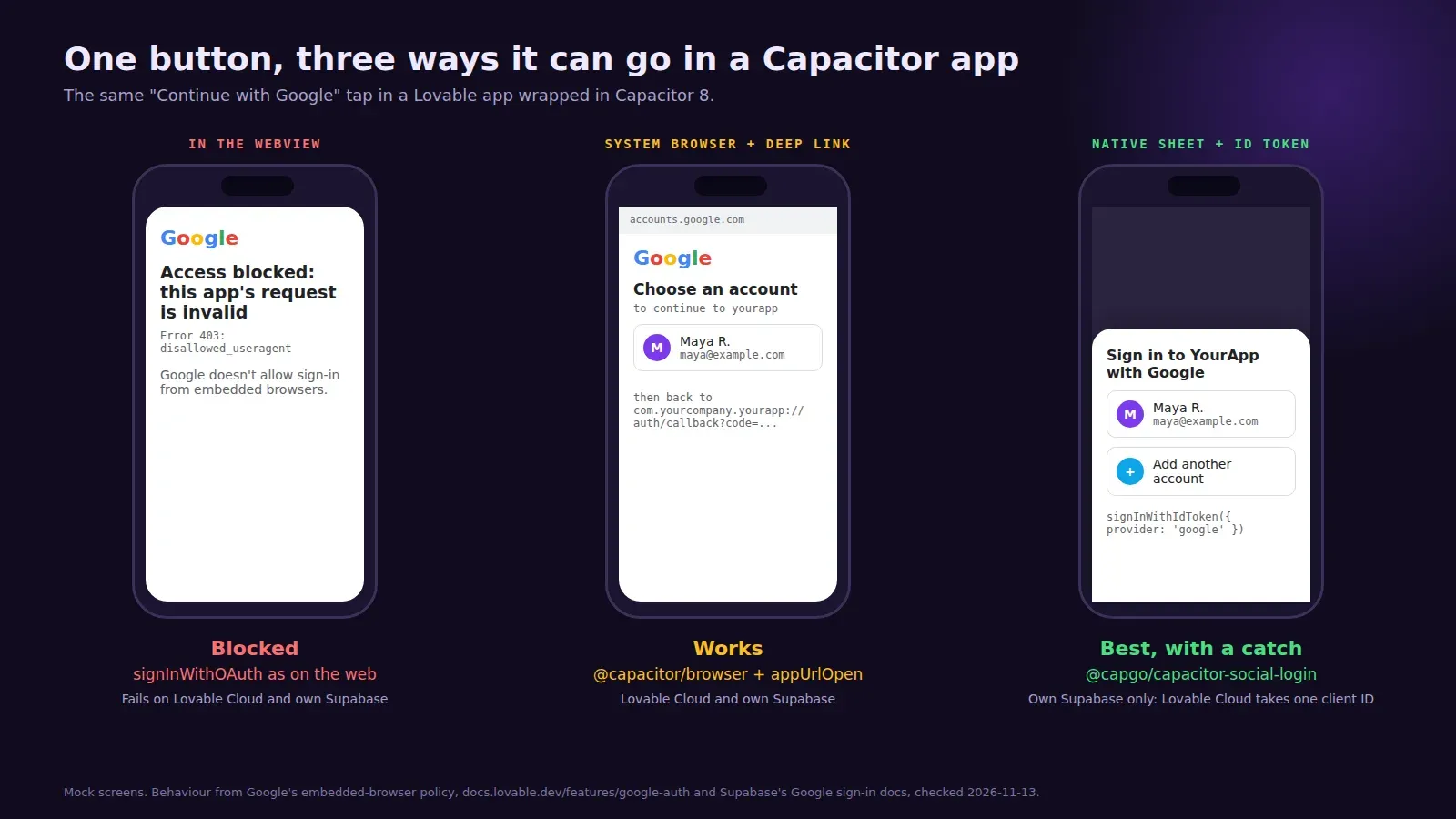
“Continue with Google” works in the Lovable preview, works on your published site, and then fails the first time you tap it inside the Capacitor app. Usually with a Google page that says Error 403: disallowed_useragent. Google blocks OAuth sign-in inside embedded WebViews, and a Capacitor app is exactly that: your web app running in WKWebView on iOS and Android System WebView on Android.
There are two ways around it. Open Google’s sign-in page in the system browser and come back to the app through a deep link, or use Google’s native sign-in sheet and hand the ID token to Supabase. Which one you can use depends on whether your app runs on Lovable Cloud or on your own Supabase project. We checked everything below on November 13, 2026.
Why the redirect that works on the web breaks in the app
On the web, supabase.auth.signInWithOAuth({ provider: 'google' }) sends the page to Google, Google sends it back to Supabase, Supabase sends it back to your site with a session. In Capacitor that same redirect happens inside the WebView, and Google refuses to show its login page there. That’s a policy, not a bug, so no setting in Lovable fixes it.
Even if Google allowed it, the redirect would come back to https://yourapp.com, not to the app. The WebView would load your website and the user would be “logged in” somewhere they can’t see.
Route 1: the system browser and a deep link
This one works with Lovable Cloud and with your own Supabase. The flow: ask Supabase for the Google URL without redirecting, open it with @capacitor/browser (SFSafariViewController on iOS, Custom Tabs on Android, both of which Google accepts), and catch the redirect back with @capacitor/app.
npm install @capacitor/browser @capacitor/app
npx cap sync
Current versions are @capacitor/browser 8.0.5 and @capacitor/app 8.1.2, both for Capacitor 8. Then:
import { Browser } from '@capacitor/browser';
import { App } from '@capacitor/app';
import { Capacitor } from '@capacitor/core';
import { supabase } from '@/integrations/supabase/client';

const REDIRECT = 'com.yourcompany.yourapp://auth/callback';

export async function signInWithGoogle() {
  if (!Capacitor.isNativePlatform()) {
    return supabase.auth.signInWithOAuth({ provider: 'google', options: { redirectTo: window.location.origin } });
  }
  const { data, error } = await supabase.auth.signInWithOAuth({
    provider: 'google',
    options: { redirectTo: REDIRECT, skipBrowserRedirect: true },
  });
  if (error) throw error;
  await Browser.open({ url: data.url });
}

App.addListener('appUrlOpen', async ({ url }) => {
  if (!url.startsWith(REDIRECT)) return;
  const code = new URL(url).searchParams.get('code');
  if (code) await supabase.auth.exchangeCodeForSession(code);
  await Browser.close();
});
Three things that will trip you up.
The client has to use PKCE. exchangeCodeForSession needs a code in the URL, which you only get with flowType: 'pkce' in createClient. The client file Lovable generates doesn’t set it, so the default implicit flow puts the tokens in the URL fragment instead. Either add flowType: 'pkce' to the auth options, or read access_token and refresh_token from the fragment and call setSession. We’d add the flag. Lovable may rewrite that file later, so check it after big edits.
The custom scheme has to be registered twice. Once in the native projects (an intent-filter in AndroidManifest.xml, a URL type in Xcode), which our deep links guide walks through, and once as an allowed redirect URL on the auth side. On your own Supabase that’s Authentication > URL Configuration. On Lovable Cloud, Lovable’s Google sign-in docs say to register the app’s custom URL scheme as a redirect URL, and their redirect list wants exact matches, trailing slash included.
Android Custom Tabs stays open. If you forget Browser.close(), the user lands back in the app with a browser tab still sitting on top of it after the next app switch. Small thing, looks broken.
Route 2: the native Google sheet and an ID token
This is the nicer experience. No browser, just the account picker that every other app uses. The app gets an ID token from Google natively and calls:
await supabase.auth.signInWithIdToken({ provider: 'google', token: idToken, nonce: rawNonce });For the native part, use @capgo/capacitor-social-login (8.7.10, published November 12, 2026, Capacitor 8). The plugin most old tutorials use, @codetrix-studio/capacitor-google-auth, stopped at a release candidate for Capacitor 6 in May 2024. Don’t build on it.
The catch is client IDs. Google issues the ID token for your iOS or Android OAuth client, and Supabase only accepts it if that client ID is on its list. Supabase’s Google docs say to put the web client ID first and then the others, comma separated, in the Client IDs field, and to add an Android client for every SHA-1 you sign with: the debug key and the Play upload key are different fingerprints. Nonce checks are on by default; send the hashed nonce to Google and the raw one to Supabase.
On Lovable Cloud this route doesn’t work today. Lovable’s Google authentication page says it accepts one client ID for Google sign-in, either Lovable’s managed one or the single web client you enter under More > Users > Settings > Google. A native app’s iOS or Android client ID can’t be added, so Supabase rejects the token. Their suggested workaround is Route 1.
Which one we’d ship
For a first App Store release on Lovable Cloud, Route 1. It works, users recognise the Google page, and it keeps the founder building in Lovable without touching auth config.
Once the app is on its own Supabase project, Route 2. It’s a better sign-in, and it pairs well with Sign in with Apple. Apple’s guideline 4.8 expects an equivalent privacy-focused login option in apps that offer Google, and Sign in with Apple is the easy way to meet it. That’s a separate plugin call and a separate post.
If you want this done rather than debugged, publishing a Lovable app to both stores starts at $300 for up to 5 screens and includes the sign-in flows, with the tiers on our pricing page.